

Organize Page Content with Sections, Rows, and Columns
Introduced in the example app earlier, Sections can help you structure and organize your page content-they correspond to the Bootstrap container class. Sections can not be nested, instead use Rows and Columns within a Section to organize your content. For more see the later section
Layout Rules.
Sections can have an optional heading attribute. Here, a section has been added below the Welcome to Portfolio Optimization section, and the Row holding the RESULTS and SCENARIO COMPARISON columns has been dragged into the new Section:
View Designer
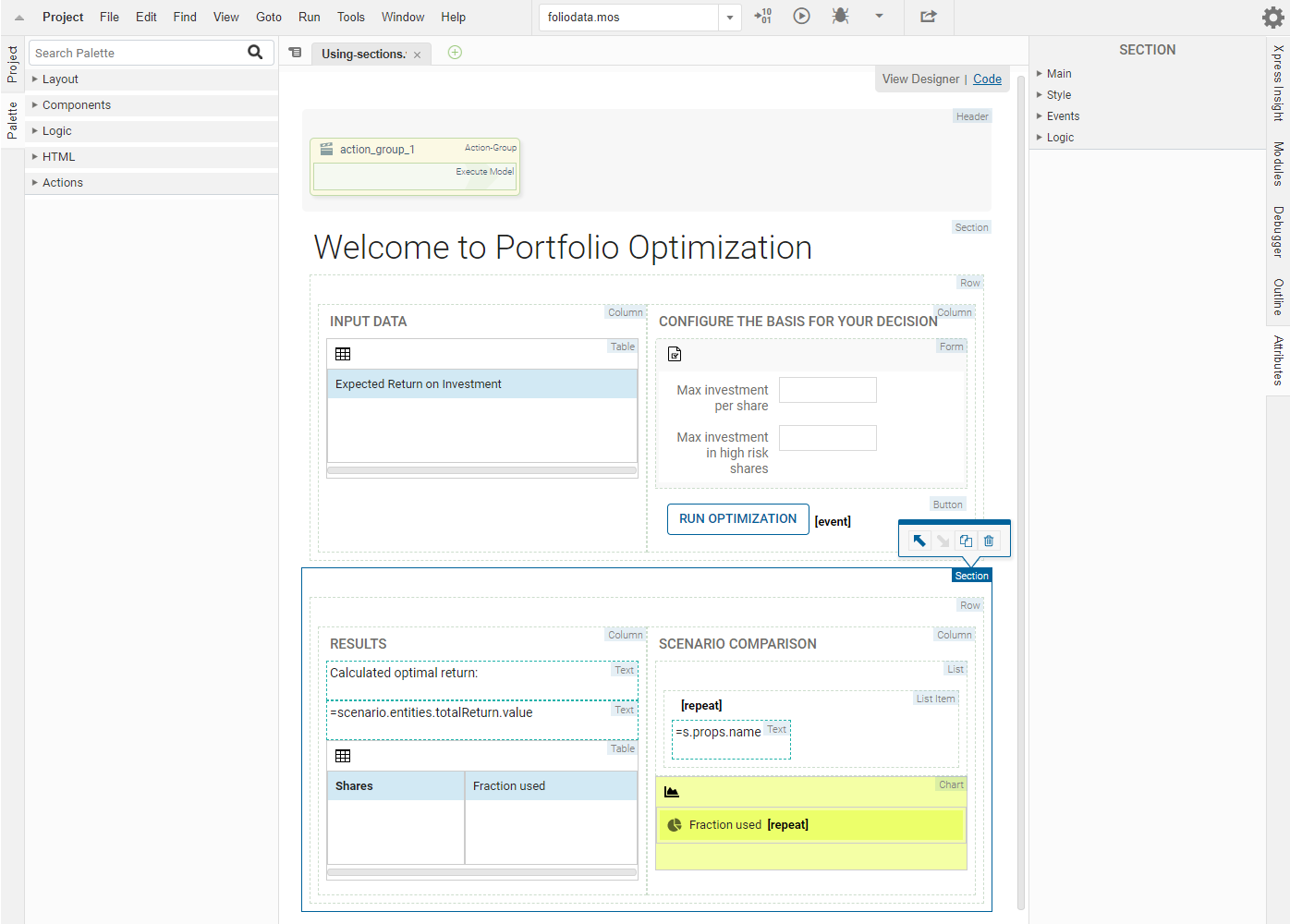
Using Sections in View Designer
Code editor
<vdl version=“4,7”>
    <vdl-page>
        <vdl-header draggable="true">
            <vdl-action-group name="action_group_1" draggable="true">
                <vdl-action-execute></vdl-action-execute>
            </vdl-action-group>
        </vdl-header>
        <vdl-section heading-level="1" heading="Welcome to Portfolio Optimization">
            <vdl-row>
                <vdl-column size="6" heading="INPUT DATA">
                    <vdl-table page-mode="paged" page-size="5">
                        <vdl-table-column entity="Shares_Return" editable="true">>
                    </vdl-table>
                </vdl-column>
                <vdl-column heading="CONFIGURE THE BASIS FOR YOUR DECISION" size="6">
                    <vdl-form>
                        <vdl-field label="Maximum investment per share" entity="MaxPerShare" size="4">>
                        <vdl-field label="Maximum investment into high-risk values" entity="MaxHighRisk" size="4">>
                    </vdl-form>
                    <vdl-button vdl-event="click:actions.action_group_1" label="RUN OPTIMIZATION"></vdl-button>
                </vdl-column>
            </vdl-row>
        </vdl-section>
        <vdl-section>
            <vdl-row>
                <vdl-column heading="RESULTS" size="6"><span vdl-text="Calculated optimal return:     "></span>
                    <span vdl-text="=scenario.entities.TotalReturn.value"></span>
                    <vdl-table column-filter="true" show-filter="true" page-mode="paged" page-size="5">
                        <vdl-table-column set="ShareIds"></vdl-table-column>
                        <vdl-table-column entity="Shares_fraction"></vdl-table-column>
                    </vdl-table>
                </vdl-column>
                <vdl-column heading="SCENARIO COMPARISON" size="6">
                    <ul>
                        <li vdl-repeat="=s, scenarioIndex in scenarios"><span vdl-text="=s.props.name"></span></li>
                    </ul>
                    <vdl-chart>
                        <vdl-chart-series entity="Shares_fraction" type="pie" scenario="=i" vdl-repeat="=s,i in scenarios"></vdl-chart-series>
                    </vdl-chart>
                </vdl-column>
            </vdl-row>
        </vdl-section>
    </vdl-page>
</vdl>
As is depicted above, you can also provide a heading-level attribute that controls the weight of the heading text—these follow the typical HTML conventions, with level 1 the largest.
Controlling Section Widths
The Page element in VDL defaults to a fixed width of 1140 pixels: Sections default to occupy the full width of the page.
You can customize the Section width by adding the
width attribute to the
Section (
<vdl-section>) element—widths are specified in pixels.

|
Note If the browser window is too narrow to display the full content, scrollbars are displayed.
|
Here, the Welcome to Portfolio section has had a width defined in the Attributes pane.
View Designer

Controlling Section Widths in View Designer
Code editor
<vdl-section heading="Welcome to Portfolio Optimization" heading-level="1" width="1000">
By contrast to using a fixed width, sections can also be defined as fluid using a
layout="fluid" attribute, where text and other content re-flow to fit the browser's width whenever it is resized.
<vdl-section layout="fluid">
  This text will wrap onto the next line if the window becomes too narrow.
</vdl-section>
The width attribute is not permitted on a fluid section.